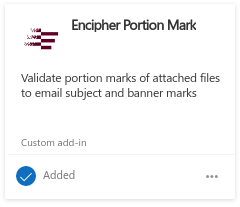
Encipher Portion Marking Add-in Installation
Before You Start
The installation can be accomplished from the local version of Outlook 365 but will still require the Add-in to be installed in the Online version. We suggest installing in the Online version and the Add-in will be automatically available in the local version.
Important:
If you will be using the Add-in on a local installation of Outlook O365, currently, Edge Webview2 must be installed for the Add-in to work correctly. Edge Webview 2 can be downloaded from the following Microsoft Edge Developer Site: Download Edge Webview 2
Note:
We suggest for demonstration purposes, that the Add-in be used in the Online version of Outlook 365.
Installation
With Outlook 365 open in your browser of choice, Click the  button to create a new message.
In the new message, locate and click the ellipsis button  from the lower tool bar.
Near the bottom of the resulting pop-up menu, click the  button to open the Add-Ins for Outlook page.
In the Add-Ins for Outlook page, click  link in the left navigation to open the My add-ins sub-page. Near the bottom of that page, locate and click the
  link and click the
  option.
Copy and Paste or type the following URL in the resulting Add Private add-in from a URL pop-up box: https://portion-mark.encipher.sk/mso365/manifest.xml so that it resembles this 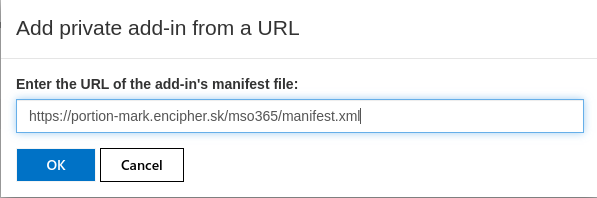 and click the
  button to add the Encipher Portion Mark Add-in.
You should now see the Encipher Portion Mark Custom Add-in in your Add-Ins and should be able to use it in Outlook 365.