Encipher Portion Marking Add-in Usage
Before You Start
You should have successfully completed the installation of the Encipher Portion Mark Add-in.
Usage
In Outlook 365, click  to open a new message.
Using the  , Attach one or more files to be reviewed, either from the option in the top or bottom menu of the new message. Currently, attachments must be a MS Word documents (*.docx).
From the Send menu at the bottom of the new message  , click the
  button.
From the resulting menu, locate and click the  button to open the Add-in's sidebar window. Note: If you are using the standalone version, you may find a link in the top toolbar to the Add-in. Note: You may have to have it open in a pop out window to view the Redact marks.
You should now see the Portion Marks contained within the document or documents attached. If you have multiple documents attached, you will see all portions marks and if you choose to redact, all documents will be redacted to the same level.
You can
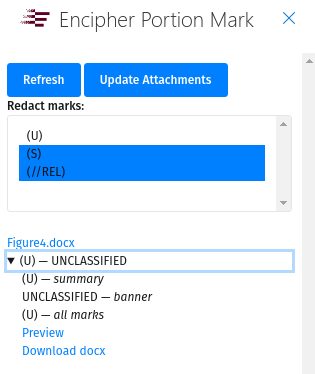
Clicking the arrow just below the attachment(s) name, you can see a preview of what marks will remain once redacted, as shown in the image above. Click on Preview to view what the resulting file will look like. You can click Download docx to download a copy of the redacted attachment.
NOTE:
If you have multiple attachments, and select one or more marks to be redacted, then remove one of the attachments, Please press  to update the available marks and banners.
You may continue selecting Portion Marks and previewing the results until you have reached the desired level of redaction.
Once you are satisfied, click the  button to redact the attachments to the desired level.
Ensuring you have previewed the resulting attachments, please ensure the correct portion mark is reflected in the Subject line of the email and send as usual.