Installation
This documentation will walk you through installing the Infinity Vault Add-In for Microsoft Office.
Prerequisites
These instructions were written for Windows 10 and Office 2013. Additional versions of Office will have their own installation instructions if any additional installation steps are required.
- An existing installation of Microsoft Word
- Infinity Vault Installation Executable
Note: If you have an existing installation of Infinity Vault please ensure that you uninstall it prior to performing the following Uninstall Documentation.
Initial Installation
To begin the installation, double-click the Infinity Vault installation file (.exe) you have downloaded or been provided. This will launch the installer requiring just a few steps to complete.
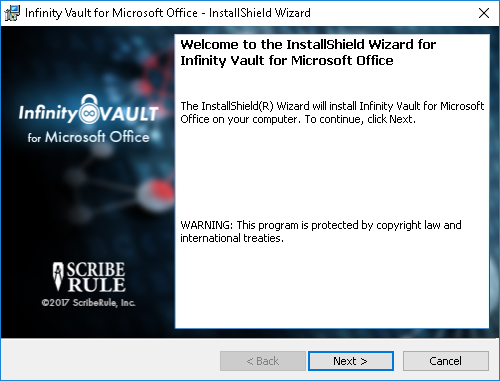
At the first screen of the installer, click Next > to continue to be presented with the License Agreement.
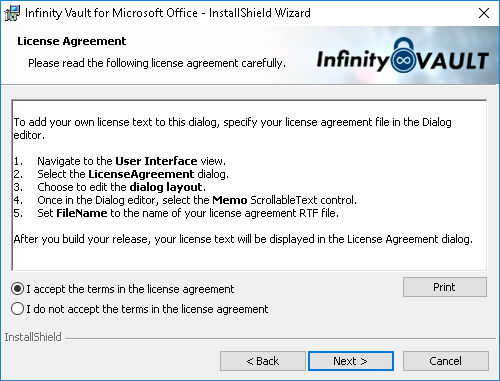
If you agree with the terms, select the "I accept the terms in the license agreement" radio button and then click Next > to move to the next step of verifying that you wish to install Infinity Vault.
On the Ready to Install the Program dialog, simply click Install to verify that you wish to install Infinity Vault.

After a few progress bars and various other screens shown during installation, the installer will notify you that the installation has completed as shown in the following image.
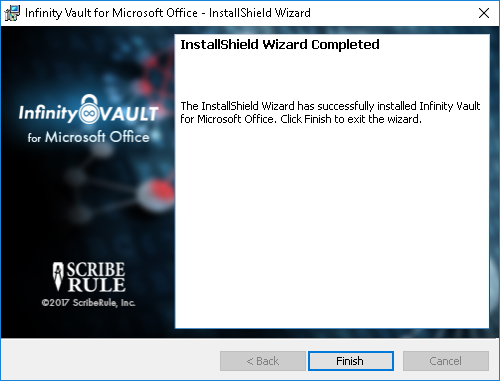
Click Finish to complete the first part of the installation.
At this point Infinity Vault has been installed on your system but still needs to be installed into Word.
Launch MS Word and for first time installations only, you should see the following Office Custom Installer dialog verifying that you wish to install and enable the Add-in for MS Word.
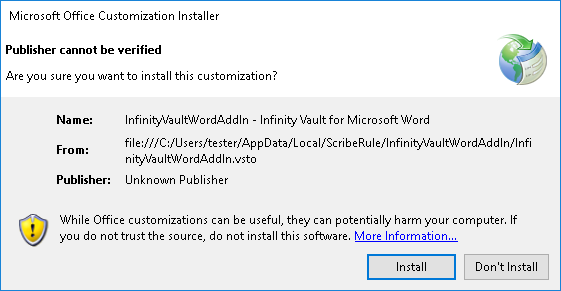
Click Install and the installation is complete and you are ready to begin using the Infinity Vault for Microsoft Office add-in.