Import Security Styles from other Infinity Vault Documents
This document will walk you through importing existing Security Styles from other documents in Infinity Vault that you have access to.
Tip
Importing can be a signficant time saver depending on the complexity and frequent use of a given of a Security Style
Import a Security Style
To import an existing Security Style from another Infinity Vault document, click Enable Security Editor, Save the document, and then click the  button.
The Infinity Vault Security Styles screen will open.
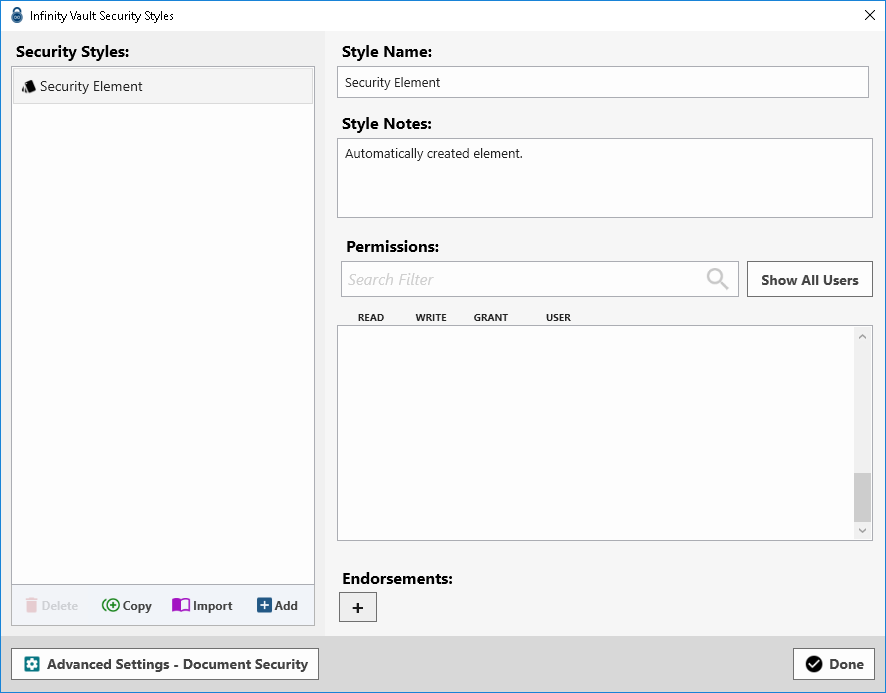
Click the  to open the Import Security Styles screen.
A list of Source Documents that you have access to will be displayed in the Source Documents column. Single-click the desired Source Document to select it.
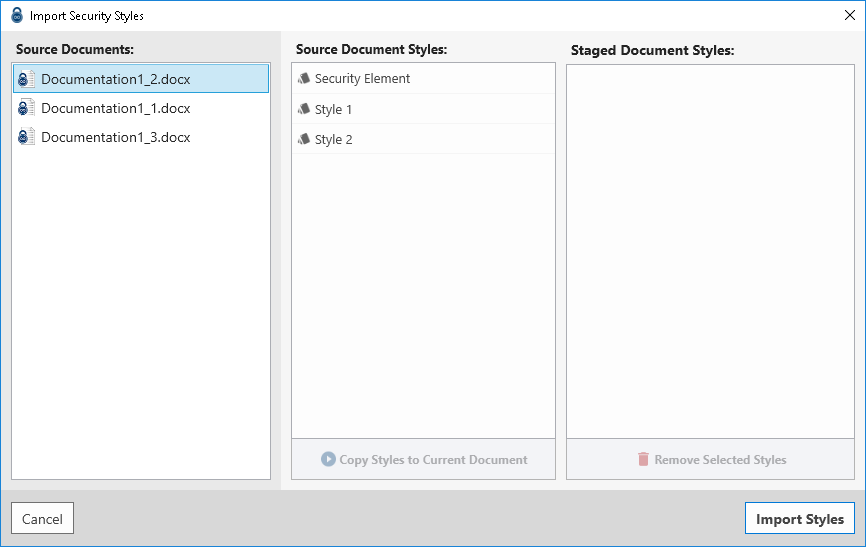
A list of the Security Styles in the selected Source Document is listed in the Source Document Styles column.
Single-click one or more Source Document Styles to be imported 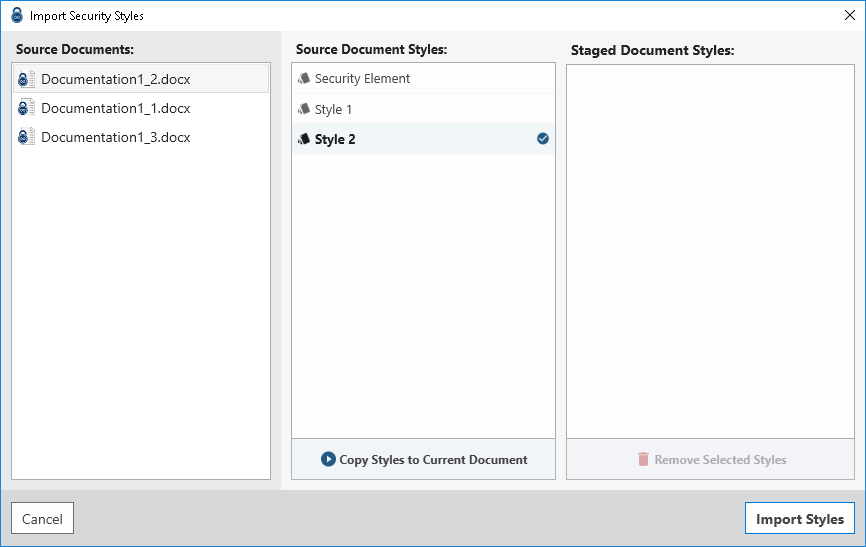
then click the  button to stage the selected Security Style(s).
Note
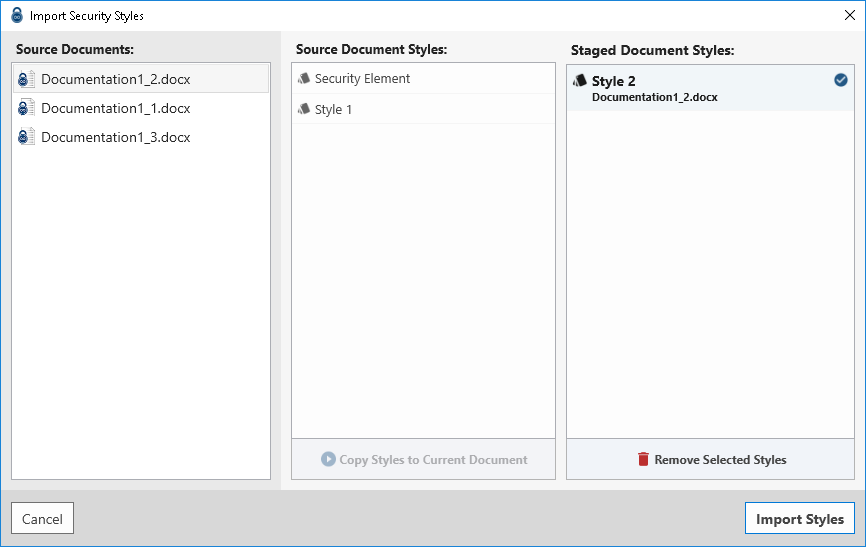
Security Styles can be selected from multiple Source Documents. The Source Document will be shown in the subtitle of the Staged Document Styles.
To remove a Security Style from the Staged Document Styles, single-click the desired Security Style then click the  .
.
When you have finished selecting the desired Security Styles to be imported into the current document, click the  button.
The imported Security Style(s) will now be displayed in the 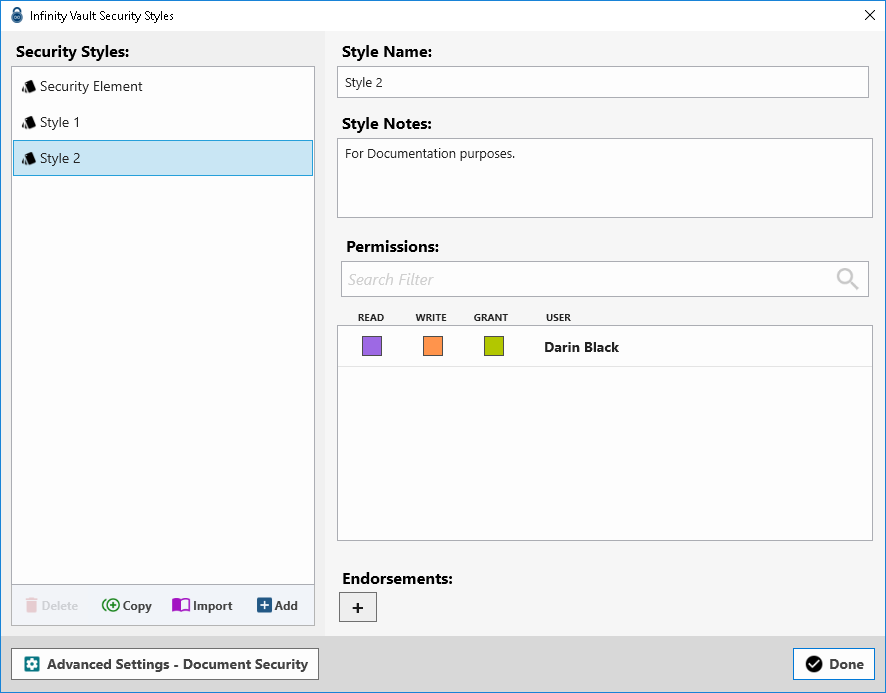 and can be applied or this copy of the Security Style could be further modified, if desired.
Summary
You should now be able to import Security Styles from other Infinity Vault Documents which can result in significant time savings depending on the number of participants or complexity of a Security Style.