Enable and Manage Security
This document will walk you through Enabling the Security Editor mode in Infinity Vault for Office. It will also briefly cover important concepts between Content Mode and Security Edit Mode, the interface, and options presented in Security Edit Mode.
Note
If you are not familiar with the Infinity Vault interface please quickly review the Infinity Vault Interface Overview.
Infinity Vault Modes
There are two modes:
-
Content Mode: (default) This mode allows you to edit content.
-
Security Edit Mode: This mode allows you to create new secure sections and manage all aspects the security associated with creating, modifying, and removing Security Styles and Document Security.
Enabling Security Edit Mode
With the desired document open in Infinity Vault, you are in Content Editing Mode. To begin managing security on that document, you will need to enter Security Edit Mode.
In the Security Editor Sidebar 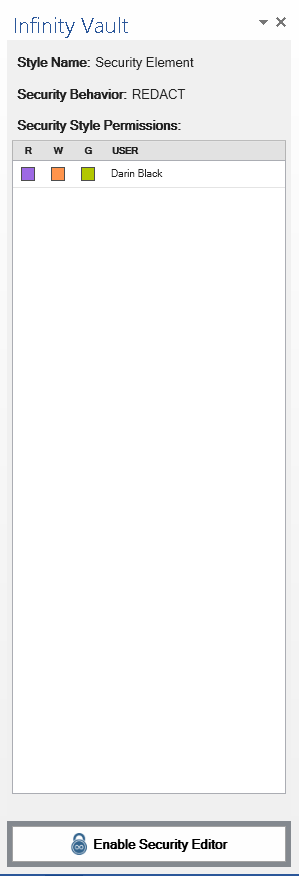
Click the  button. To begin using the Security Editor, the file will need to be saved.
You will be prompted with the 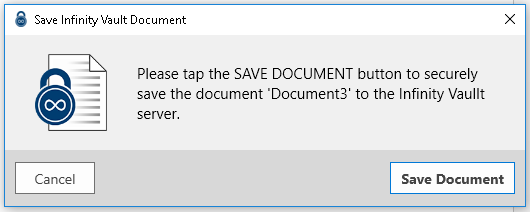 Save Infinity Vault Document dialog.
Click the Save Document button  to save the current document to your Infinity Vault Server.
After a brief progress bar you will enter Security Edit Mode. You can now manage Security Styles and Document Security.
Overview of Security Edit Mode Options
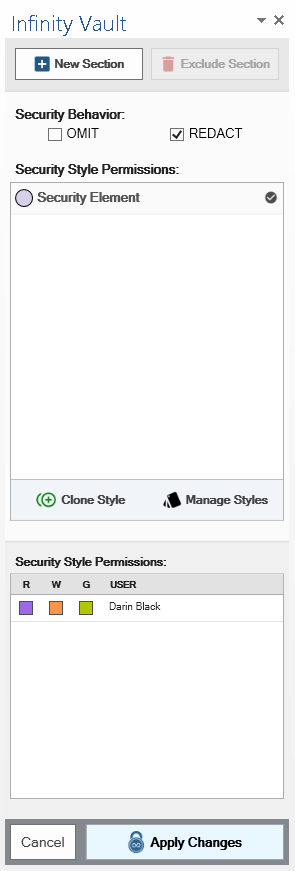
As you become familiar with Security Edit Mode, you will notice a few options at the top level of this sidebar.
Create a New Secure Section
At the top of the sidebar you will see the  button. This button will create a new secure section where the cursor is currently sitting in the text or if a section of text is highlighted, the section will be created for the highlighted text.
Note
It is recommended that you highlight the specific section of text you wish to make into a new Secure Section.
Security Behavior
The next section allows you to select the Security Behavior for the currently selected Secure Section.
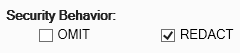
There are two options which can be selected from for a selected Secure Section and the selected Security Style.
-
OMIT - For the selected Secure Section and Security Style, the entire Secure Section and the space it occupies will be removed from the composite view of secure sections.
-
REDACT (default) - For the selected Secure Section and Security Style, the entire Secure Section and the space it occupies will be replaced with the redaction character.

Note
Ensure you have selected the desired Secure Section and Security Style before changing the desired Security Behavior. The cursor can be located anywhere within the desired Secure Section to assign the Security Behavior to the entire Section.
Security Style Palette
This section shows defined Security Styles such as the default Security Element, and allows you to quickly  an existing Style as well as
  . If you have more than one Security Style, you can easily tell which is currently applied by the
  check mark. The Security Editor Sidebar will update automatically according to the location of the cursor in the document. It will display the Security Style and Security Behavior applied to the Secure Section where the cursor is located. The Security Styles section of the documentation will cover each of the options for Clone Style and the options available in Manage Styles in greater detail.
Security Style Permissions
Assigned permissions for users and groups, and any endorsements will be displayed for the secure section where the cursor is located. While this section will update when in Content Edit Mode, you will need to be in Security Edit Mode to make any changes to permissions or endorsements.
Summary
You should now understand the two modes of editing in Infinity Vault for Office: Content Mode and Security Edit Mode. You should also understand the options available to you in the Security Editor Sidebar such as creating a New Section, Security Behavior, and the basics of the Security Style Palette.