Modify Security Styles
There are times when all that is needed is a quick ajustment to an existing Security Style. This document will walk you through Modifying an existing Security Style in Infinity Vault.
Modifying an Existing Security Style
Note
Place the cursor in a section of an Ininity Vault document to view the Security Style applied and permissions that have been granted.
To modify an existing Security Style, you will need to click Enable Security Editor, Save the document, and then click the  button.
The Infinity Vault Security Styles screen will open.
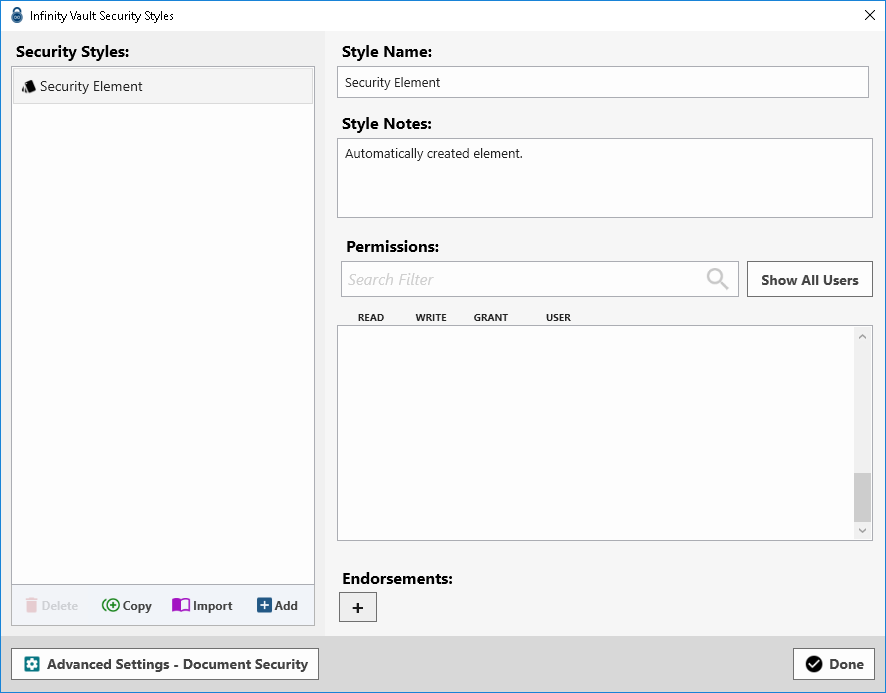
Selecting a Security Style from the Security Styles list will allow you to make modifications to the Name, Style Notes, and Permissions. Just as when Adding a new Security Style, use the Permisisons Search Filter box to locate individuals or groups you may wish to add.
Note
Unselecting all permssions (Read, Write, Grant) that may have been applied will result in the user or group not having access to the document or secured section of data.
Endorsements can be added, if desired, by clicking the  button.
Note
Endorsements cannot be added or modified in this interface, only existing Endorsements may be selected.
Once you have completed updating a Security Style, click the  to apply your changes.
Tip
If you decide the modifications may have unintended impact on other Secured Sections in an Infinty Vault document, you can easily select the  to create a duplicate Security Style to modify.
Summary
You should now be able to determine Security Styles applied to a section and make modifications to those styles allowing Security Style Name, Style Notes, Permissions, and Endorsements to be updated.