Logging on to an Infinity Vault Server
This documentation will walk you through manually logging on to an Infinity Vault Server in the Infinity Vault Add-In for Microsoft Office.
Prerequisites
-
An existing installation of Microsoft Word with the Infinity Vault Add-in installed.
-
Configure your Infinity Vault Server Settings as provided by your System Administrator.
Access the Sign in to Infinity Vault Dialog
Open Microsoft Word.
Word will normally open to the Word "Recent" and templates screen.
In the upper-left corner, you should be able to click on the  menu option.
In the lower section of the left navigation menu, click the  menu option.
On the "Account" screen you should see Sign in to Infinity Vault.
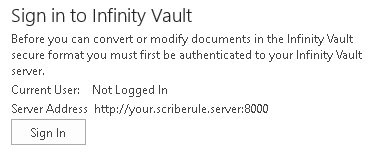
The first time you access these settings after installation, the Current User and Server Address will be set as Not Configured.
Click on  to open the Infinity Vault Login dialog.
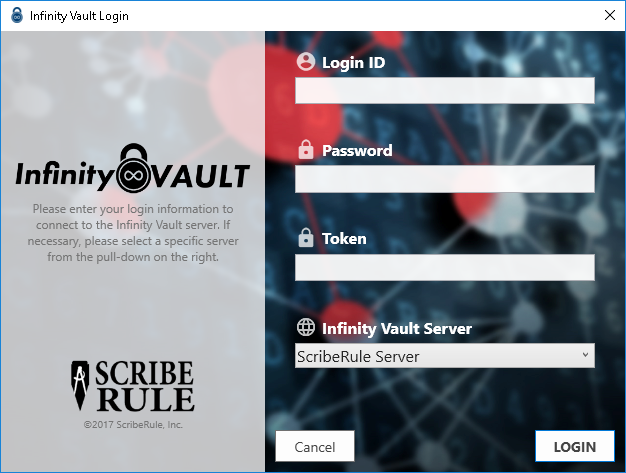
You will need to enter your Login Id, Password, and Token. These will obtained as described by your System Administrator and may be specific to your installation. You will also need to select the desired Infinity Vault Server, if you have more than one.
Click the  button to log in.
The Infinity Vault Login dialog will close and you will be returned to the Account screen where you can verify that the Current User and Server Address are as expected.
You can also Click the  to sign out of an Infinity Vault Server.
Important
If you press the and see the following Alert Message,
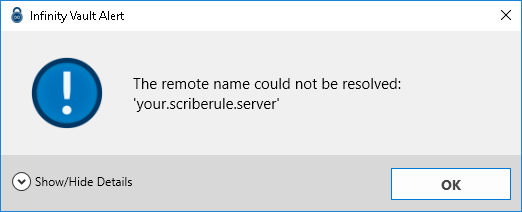
The selected Infinity Vault server is unreachable or has been incorrectly configured. Please verify your Infinity Vault Server settings.
Summary
You should now be able to locate and manually login using the Infinity Vault Sign In dialog for MS Word.
Next Steps
Create a new document in Infinity Vault