Add Security Styles
This document will walk you through Adding Security Styles in Infinity Vault for Office.
Default Security
When you convert a document into Infinity Vault, and click Enable Security Editor, you will see the default Security Element Security Style is applied to the contents of the document.
Adding a New Section
While Manage Styles and Clone will also allow the creation of new Security Styles, the most common first step in adding a new Security Style is to create a New Section.
Begin by highlighting the text you wish to apply a new Security Style to, and click  to open the Assign Security to Selected Content dialog.
Note the existing default Security Element style applied to the entire document.
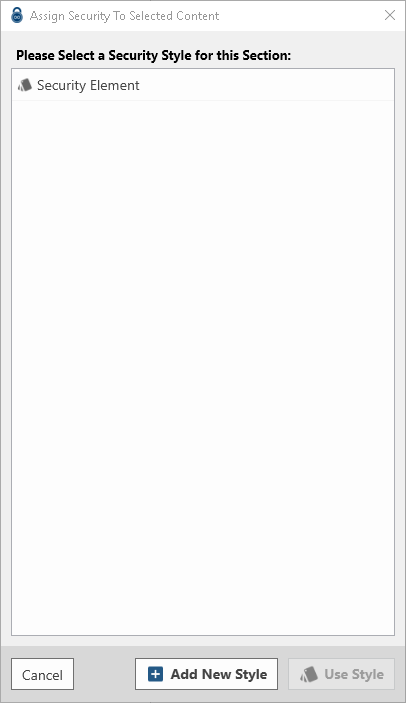
Click the Add New Style button  to open the Infinity Vault New Security Style dialog.
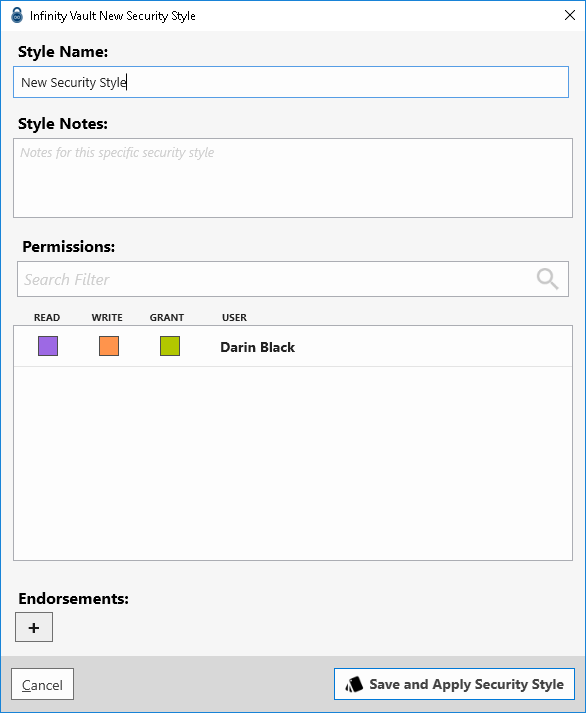
Enter a new name in the Style Name, enter any Notes that clarify the intended use of this Style in the Style Notes, then select the individuals or groups that will have permission to this secure section.
Begin typing in the Permissions Search Filter box to locate the desired individual or group.
Once an individual or group has been added, click the appropriate box(s) to apply the desired permissions.
Note
View Infinity Vault Concepts to reivew the available permissions.
If desired, select any applicable Endorsements to further limit scope.
Pressing the  button, the new Security Style will be saved and applied to the section of text that was highlighted.
Summary
As mentioned above, there are several ways to add security sections of documents. The various ways will provide the same result which is the ability to apply fine-grained security to various sections of an Infinity Vault document.