Creating a new document in Infinity Vault
This document will walk you through creating a new Infinity Vault document.
Prerequisites
Microsoft Word with the Infinity Vault Add-in for Office installed.
Create a new document in Word
Open Word. Word will most likely open to a screen showing Recent documents and a series of templates which you can use as a starting point for the type of document you are looking to create.
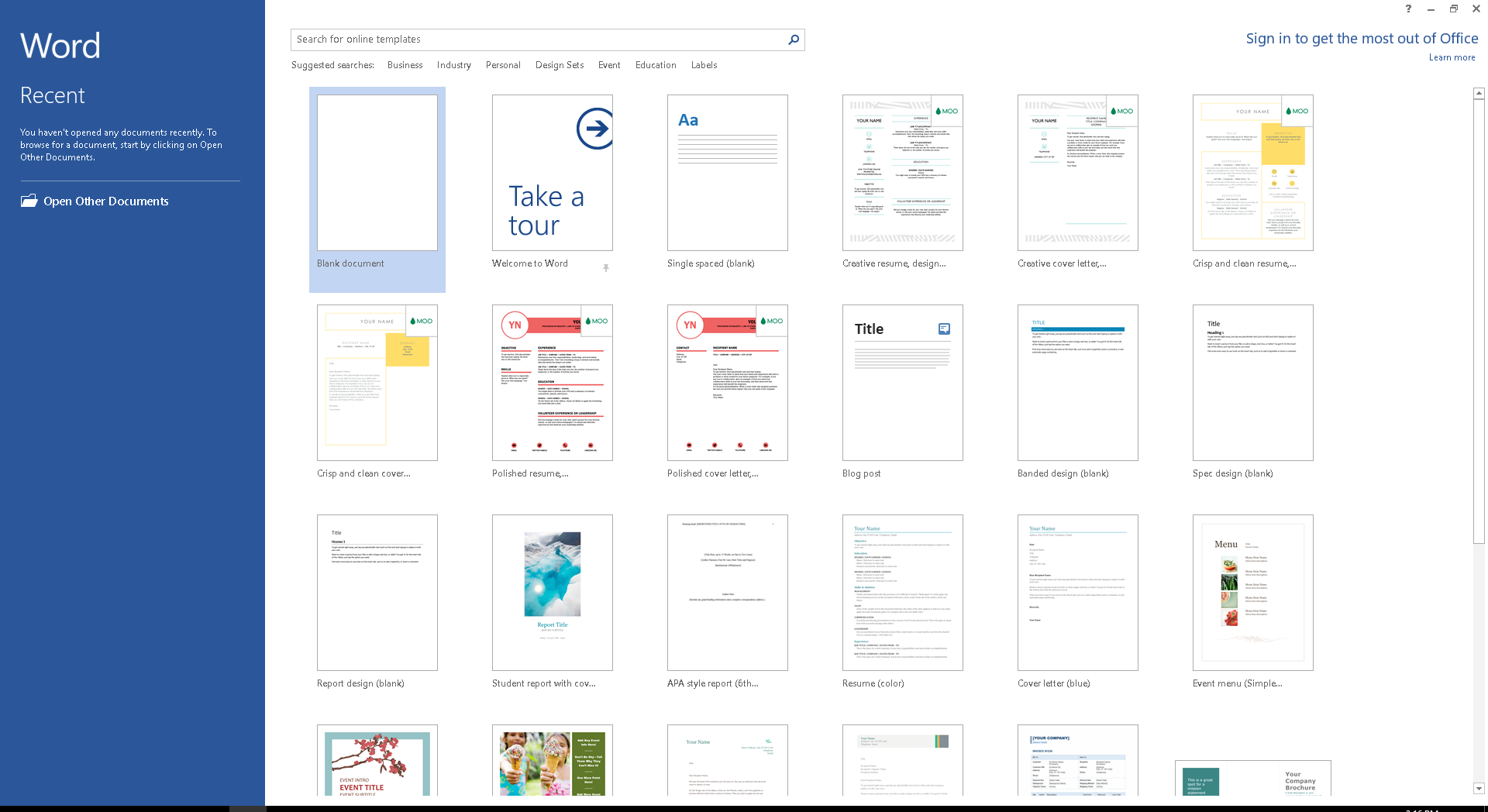
For documentation purposes here, we will start by clicking the Blank Document template. This will open a blank document in Word.
Save the document with the desired name but no content. As covered in Infinity Vault Concepts, this locally stored document will be deleted as soon as we convert it into Infinity Vault.
Convert a document into Infinity Vault
To convert the newly saved document into Infinity Vault, click the File menu. You should now see an option for Infinity Vault Actions.
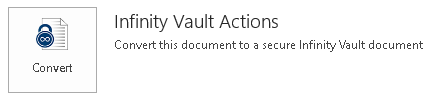
Click  to convert the document into Infinity Vault.
Note
If you are not currently logged in, you will be presented with the Sign In dialog to allow you to select an Infinity Vault Server and enter your Username and Password to Sign In.
You will see a brief progress bar as the document is converted into a secure Infinity Vault document.
Your document has now been converted and the Infinity Vault Security sidebar will open.
Security Best Practices
Now that the document is securely in Infinity Vault, you should close the original blank document.
Close the original blank document by selecting the View menu and clicking  , then selecting the original file name. Click the File menu and select the Close option to close the file.
You can now safely delete the original blank file from your local file system. Using whatever you are most familiar with such as File Explorer, navigate to the directory where you saved the file and delete it.
Summary
You can now create a new file, convert it into Infinity Vault as a secure document, and remove the original file from the local file system.